
AI Diagram Generators for Presentations: A No-Nonsense Breakdown

For more details, visit TED Talks for presentation inspiration
Creating diagrams is one of those tasks that everyone hates but no one can avoid. Whether you’re mapping a software architecture, documenting a business process, or explaining a workflow in a presentation, the actual thinking takes 10 minutes and the formatting takes two hours. AI diagram generators promise to eliminate that formatting gap — you describe what you want in plain language, and the AI handles the layout, connections, and styling. After testing 12 tools across software architecture, business process mapping, organizational charts, and network diagrams, I’ve found that some of these tools genuinely deliver on that promise while others create diagrams that look like they were assembled by someone who’s never seen a flowchart before. See Google helpful content guidelines for more context.
The quality gap between the best and worst AI diagram generators is enormous. A good one saves you hours and produces something you can immediately use in a client presentation. A bad one creates a tangled mess of overlapping boxes and misrouted connections that takes longer to fix than it would have taken to draw from scratch. Let me help you avoid the bad ones.
What to Look for in an AI Diagram Generator
Before comparing specific tools, here are the evaluation criteria I used throughout testing. These are the factors that actually matter when you’re creating diagrams for real-world use:
- Layout quality — Does the AI produce clean, readable layouts with minimal crossing lines? Or does it create a hairball of overlapping nodes that requires extensive manual cleanup?
- Accuracy of interpretation — When you describe a process or system, does the AI capture the actual logic correctly? Missing a decision branch or misconnecting a relationship can make the entire diagram misleading
- Customization depth — Can you adjust colors, shapes, fonts, and styles after generation? Or are you locked into the AI’s default appearance?
- Export options — Can you export to SVG, PNG, PDF, and common formats that integrate with your existing tools (Figma, PowerPoint, Confluence, etc.)?
- Iterative refinement — Can you modify the diagram through conversation (e.g., “add a step between X and Y” or “make this section more detailed”)? Or do you have to regenerate from scratch for every change?
Whimsical: Best Overall AI Diagram Generator
Whimsical has been my go-to recommendation since it launched its AI diagram feature, and it remains the best all-around option in 2026. The AI understands natural language descriptions with impressive accuracy and produces layouts that look like they were arranged by a human designer — consistent spacing, logical flow direction, and appropriate use of color to distinguish different sections.
What I appreciate most about Whimsical is its iterative workflow. You start with a prompt like “Create a user authentication flow for a web application with email/password login, OAuth via Google and GitHub, and password reset functionality.” Whimsical generates the diagram, and then you can click on any element to refine it: “Add MFA as an optional step after successful login” or “Split the OAuth flow into separate branches for each provider.” Each modification is handled gracefully without disrupting the existing layout.
The tool supports flowcharts, mind maps, wireframes, and sequence diagrams. It also has excellent collaboration features — multiple team members can edit simultaneously with real-time cursor tracking. Integration with Notion, Slack, and Linear makes it easy to embed diagrams into your existing workflow.
Pricing: Free for up to 100 AI actions per month with basic features. Starter plan at $10/month per editor includes unlimited AI actions, custom styling, and priority support. Organization plans at $20/editor/month add SSO and admin controls.
Best for: Software teams, product managers, and anyone who needs to create diagrams collaboratively with minimal formatting effort.
Lucidchart with AI: Enterprise Standard with AI Assistance
Lucidchart has been the enterprise diagramming standard for years, and its AI features (branded as “Lucid AI”) add intelligent assistance on top of an already powerful platform. The AI can generate diagrams from text descriptions, summarize existing diagrams, suggest improvements, and even convert unstructured meeting notes into structured process diagrams.
The AI generation quality is slightly behind Whimsical’s — layouts sometimes need manual adjustment, particularly for complex diagrams with many interconnections. However, Lucidchart’s advantage is its thorough template library (thousands of templates for every industry and use case), its deep integrations with enterprise tools (Jira, Salesforce, AWS, Azure), and its compliance certifications (SOC 2, HIPAA, GDPR).
For organizations that already use Lucidchart, the AI features are a welcome productivity boost. For new users choosing a tool primarily for AI generation, Whimsical or Creately might be better starting points.
Pricing: Free with 3 editable documents and basic shapes. Individual plan at $7.95/month. Team plan at $9/user/month. Enterprise pricing custom.
Creately: Best for Visual Knowledge Workers
Creately takes an interesting approach by combining diagram generation with a visual workspace. Its AI can generate not just individual diagrams but connected sets of documents — a process flow linked to a database schema linked to an organizational chart, for example. This “visual wiki” approach is unique among AI diagram tools and particularly valuable for onboarding new team members or documenting complex systems.
The AI quality is strong for standard diagram types (flowcharts, org charts, UML, ER diagrams). It handles technical descriptions well, likely because it’s been trained on software engineering and business analysis documentation. I found it particularly good at generating database schema diagrams from natural language descriptions — it correctly identified entities, attributes, and relationships from a paragraph describing a system.
The collaborative features are solid but the UI feels more cluttered than Whimsical’s cleaner interface. There’s a learning curve to understand how the visual workspace connects different diagram types, but once you’re set up, it’s powerful for maintaining living documentation.
Pricing: Free for up to 3 canvases. Personal plan at $5/month. Team plan at $8/user/month. Enterprise custom.
Mermaid AI (via ChatGPT/Claude): Developer-Favorite Text-to-Diagram
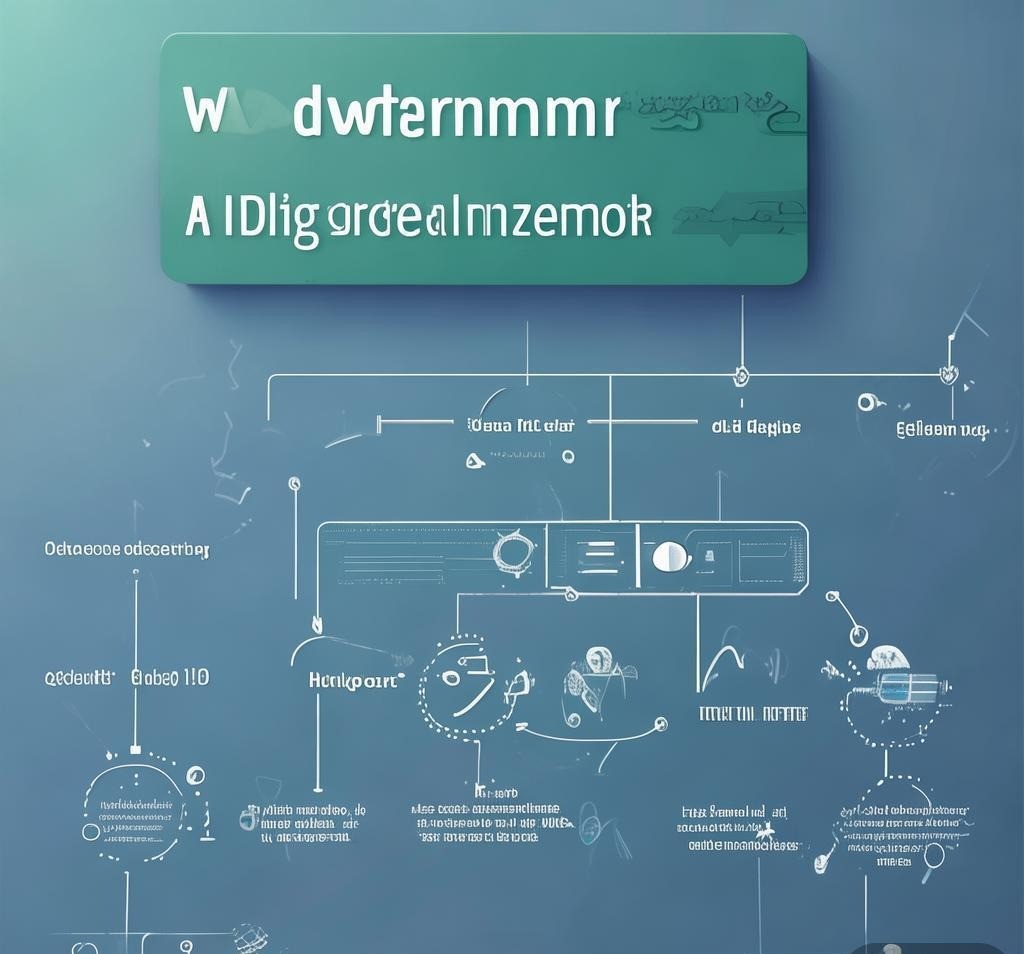
Mermaid isn’t a standalone AI tool — it’s a text-based diagram syntax that AI models like ChatGPT and Claude can generate. You describe what you want, the AI writes Mermaid syntax, and you render it using any Mermaid-compatible viewer (GitHub markdown, Notion, Obsidian, or the Mermaid Live Editor). This approach has become extremely popular among developers because it integrates directly into documentation workflows.
The advantage of Mermaid-based diagrams is version control friendliness. Since diagrams are defined in text, they can be tracked in git, reviewed in pull requests, and generated as part of CI/CD pipelines. The disadvantage is styling limitations — Mermaid supports basic customization but can’t match the visual polish of dedicated diagramming tools like Whimsical or Lucidchart.
For technical documentation, architecture decision records, and developer-facing diagrams, Mermaid is hard to beat. For client presentations or marketing materials, you’ll want a tool with better visual design options.
Cost: Mermaid itself is open source and free. ChatGPT Plus ($20/month) or Claude Pro ($20/month) for AI generation. Many Mermaid renderers are also free (GitHub, Obsidian, Mermaid Live Editor).
Draw.io (diagrams.net) with AI: Best Free Option
Draw.io is already widely used as a free, open-source diagramming tool. Recent integrations with AI plugins (particularly through the Copilot-style extensions) add diagram generation capabilities. The AI quality isn’t as polished as Whimsical’s or Creately’s, but the fact that Draw.io is completely free, works offline, and integrates with Google Drive and Confluence makes it a compelling option for budget-conscious teams.
The generation workflow typically involves pasting your prompt into the AI assistant panel, which generates the diagram elements on the canvas. You then manually adjust the layout. It’s less automated than Whimsical but gives you full control over the result. For simple diagrams (basic flowcharts, org charts), the AI saves significant time. For complex diagrams with many connections, you’ll likely spend more time fixing the layout than you saved.
Cost: Completely free. No premium tier. Confluence and Jira integrations are also free for Atlassian users.
Feature Comparison Table
| Feature | Whimsical | Lucidchart | Creately | Mermaid AI | Draw.io |
|---|---|---|---|---|---|
| AI Layout Quality | ★★★★★ | ★★★★☆ | ★★★★☆ | ★★★☆☆ | ★★★☆☆ |
| Iterative Editing | ★★★★★ | ★★★★☆ | ★★★★☆ | ★★★★★ | ★★★☆☆ |
| Diagram Types | 4 types | 15+ types | 10+ types | 20+ types | 15+ types |
| Collaboration | ★★★★★ | ★★★★★ | ★★★★☆ | ★★☆☆☆ | ★★★★☆ |
| Visual Polish | ★★★★★ | ★★★★☆ | ★★★★☆ | ★★☆☆☆ | ★★★☆☆ |
| Export Options | PNG, SVG, PDF | PNG, SVG, PDF, VSDX | PNG, SVG, PDF | SVG, PNG | PNG, SVG, PDF, VSDX |
| Free Plan | ★★★☆☆ | ★★☆☆☆ | ★★★☆☆ | ★★★★★ | ★★★★★ |
| Starting Price | $10/mo | $7.95/mo | $5/mo | Free | Free |
AI Diagram Generation: Text Prompts That Actually Work
The quality of your AI-generated diagram depends heavily on how you describe what you want. After generating hundreds of diagrams, here are the prompt patterns that consistently produce the best results:
- Specify the diagram type explicitly — “Create a sequence diagram showing…” produces better results than “Show the interaction between…” because the AI knows the structural rules of each diagram type
- Number your steps or list your entities — “1. User submits form, 2. System validates input, 3. Database stores record” produces cleaner layouts than “the user submits a form which goes to the system that validates and stores in the database”
- Indicate flow direction — “top-to-bottom flowchart” or “left-to-right process map” helps the AI orient the layout correctly
- Group related elements — “Group the authentication steps together and the data processing steps together” creates visual clusters that are easier to read
- Specify the audience — “Technical architecture diagram for developers” vs. “High-level process overview for executives” produces very different levels of detail
Frequently Asked Questions
Can AI diagram generators handle complex technical diagrams like UML and ERD?
Yes, but with varying degrees of accuracy. Creately and Lucidchart handle technical diagrams well because they have specialized templates and validation rules for UML class diagrams, sequence diagrams, ER diagrams, and similar technical formats. Whimsical supports sequence diagrams but not the full UML suite. Mermaid supports virtually all diagram types through its syntax but relies on the AI model to generate correct syntax, which sometimes requires manual correction. For complex technical diagrams, I recommend generating a first draft with AI and then manually verifying the correctness of relationships, cardinalities, and notation.
Are AI-generated diagrams suitable for professional presentations?
Diagrams from Whimsical, Lucidchart, and Creately are presentation-ready with minimal tweaking. Their default styling is clean and professional. Mermaid diagrams typically need styling adjustments for client-facing presentations, though they’re fine for internal documentation. Draw.io diagrams can look professional but often need manual color and font adjustments. A good rule of thumb: if you’d be embarrassed to show the AI-generated diagram to your boss or client without edits, use a different tool or refine your prompt.
Can I convert existing diagrams to editable AI format?
Lucidchart and Creately both offer import from Visio (.vsdx) files and image-based diagram recognition. The AI can analyze an uploaded diagram image and recreate it as an editable diagram. This works reasonably well for simple diagrams (5-15 elements) but struggles with complex, dense diagrams where text labels are small or overlapping. For converting large legacy diagram collections, expect to spend time cleaning up the AI’s interpretation.
How do AI diagram generators handle large, complex systems?
This is the current weakness of most AI diagram tools. Diagrams with more than 30-40 elements tend to produce cluttered, hard-to-read layouts. The AI doesn’t always make good decisions about when to break a large diagram into multiple connected sub-diagrams. Whimsical handles complexity best through its iterative refinement approach — you can generate a high-level overview first, then expand individual sections into detailed sub-diagrams. For very large systems, a manual hierarchical approach still outperforms AI generation.
Can AI diagram tools integrate with my existing development workflow?
Mermaid has the deepest developer workflow integration — it renders natively in GitHub markdown, GitLab, Notion, Obsidian, and many IDE plugins. Draw.io integrates with Confluence and Google Drive. Lucidchart integrates with Jira, AWS, Azure, and Salesforce. Whimsical integrates with Notion, Slack, and Linear. Creately integrates with Jira, Slack, and Google Workspace. If you’re a developer, Mermaid is the path of least resistance. For business teams, Lucidchart’s enterprise integrations are the most thorough.
What’s the difference between AI diagram generators and AI presentation tools?
AI diagram generators create individual diagrams (flowcharts, org charts, architecture diagrams) with precise connections and layouts. AI presentation tools like Beautiful.ai and Gamma create entire slide decks that may include diagrams but focus on overall deck design and narrative flow. If you need one specific diagram to embed in an existing presentation, use a diagram generator. If you need an entire deck with multiple visuals, use a presentation tool. Some tools like Whimsical bridge both worlds by offering presentation-ready diagram exports.
Final Verdict
For most teams, Whimsical offers the best combination of AI generation quality, visual polish, and ease of use. It’s the tool I reach for first when I need a diagram quickly. Lucidchart is the right choice for enterprises that need compliance certifications and deep tool integrations. Creately excels at creating interconnected documentation systems. And for developers who want free, version-control-friendly diagrams, Mermaid with ChatGPT or Claude is unbeatable.
The AI diagram generation space is improving rapidly — layouts are getting cleaner, interpretations are getting more accurate, and the iterative editing workflows are becoming more natural. We’re not at the point where AI can replace human judgment for complex system design, but for the 80% of diagrams that follow standard patterns, these tools can save you hours per week and produce output that’s genuinely usable in professional contexts.
For more AI tools that boost productivity and streamline development workflows, explore our Cursor AI review and our best AI coding assistant rankings. If you need AI help with other creative tasks, check out our coverage of specialized AI tools.
Disclosure: This article was generated using AI tools and reviewed by our editorial team for accuracy and quality.
Recommended AI Tools
If you found this article helpful, you might also want to explore these tools:
- PNG Maker - PNG Maker is an innovative online tool t
- askPPC - AI-powered tool for easy Amazon PPC data
- Social Media Automation - AI tool for creating high-quality, seaml
- Ramped AI - Autofill Job Applications - AI assistant to quickly autofill job app